
Appearance
Importing an invoice
Quickly import an invoice into DigiChef to track product purchase prices and quantities. If your supplier doesn’t support Electronic Invoice Integration or you’re waiting for the integration to be completed, the fastest way to get started is to upload a PDF invoice.
INFO
DigiChef uses Artificial Intelligence to extract the details from your invoices and even create new products within the platform!
Upload a PDF Invoice
- Navigate to the Orders Overview.
- Click Manage Imports to navigate to the PDF imports page.
- Select your Supplier from the dropdown first dropdown menu.
- Select the associated Store for the order from the second dropdown menu.
- Click the Browse button under the Invoice File and select the PDF to import from the file selection window.
- Click Upload PDF.
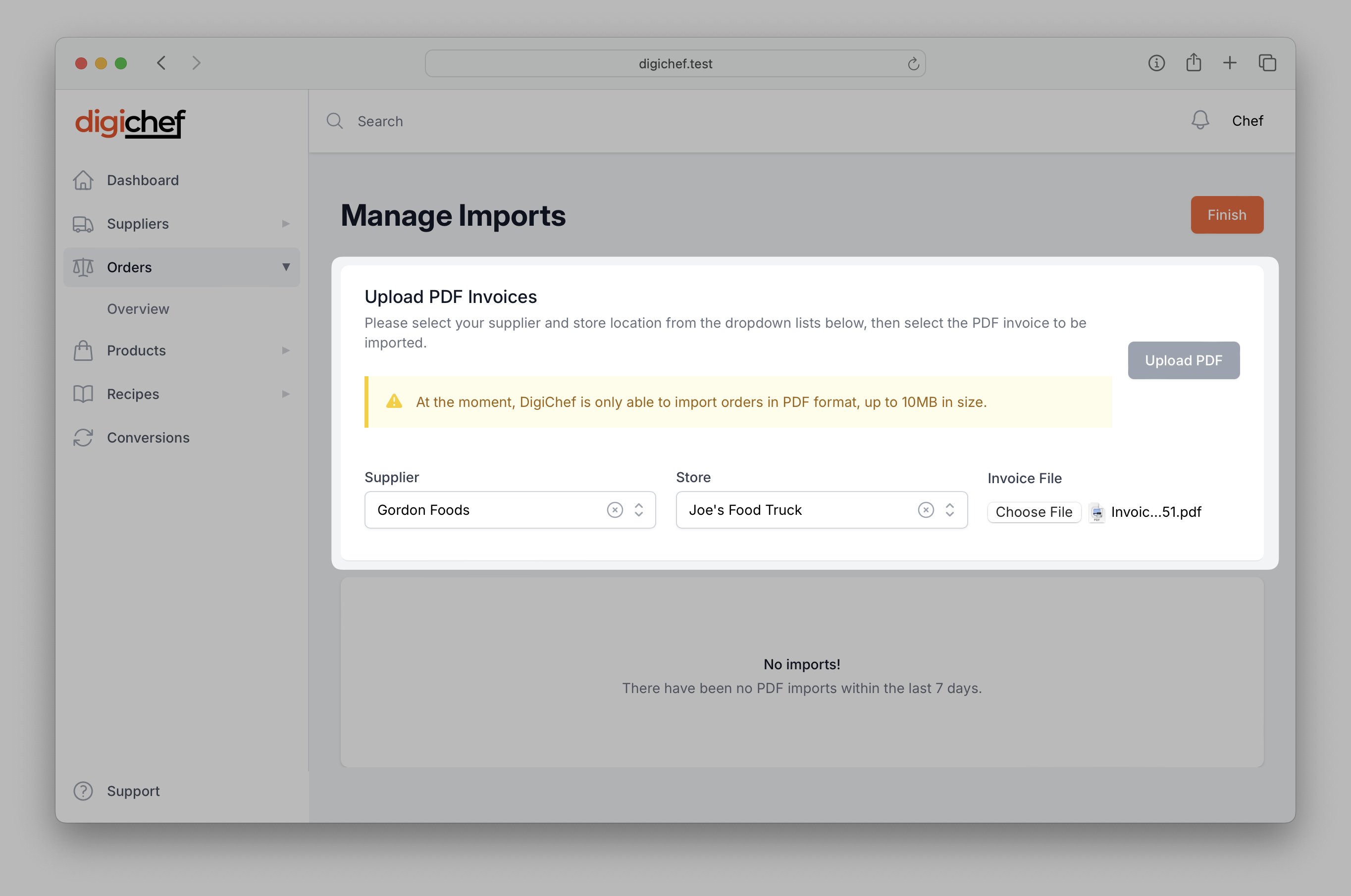
Your Invoice will now be imported into DigiChef, and any Products which do not already exist in your account will be created automatically. The import process typically takes about 1 minute, so you are welcome to watch the import process in real time, or you can wait to receive a handy notification when the process is completed.
View Order Details
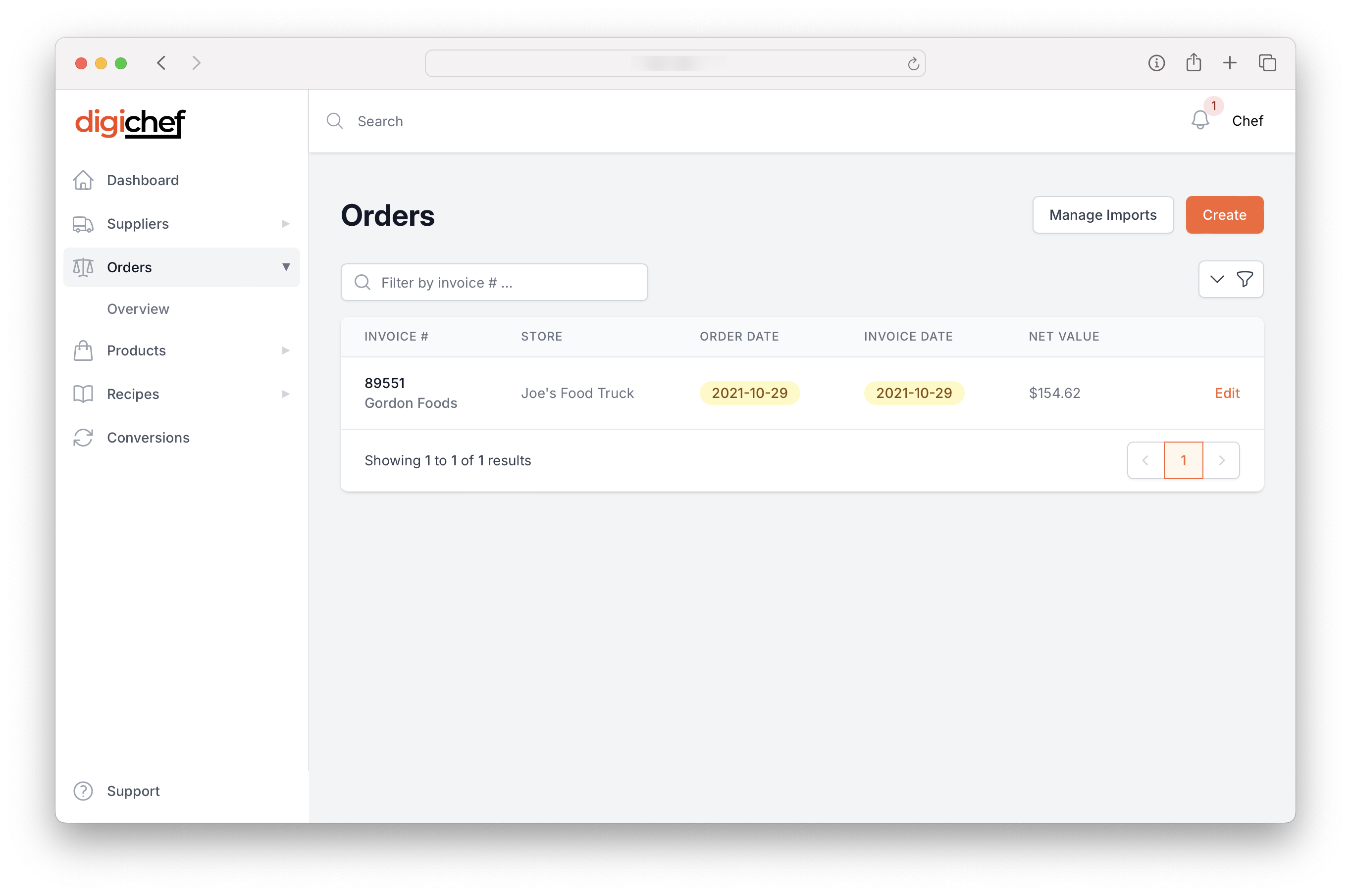
You can now head back to the Orders Overview page to see the newly imported invoice. Clicking on the Invoice Number in the table will take you to the detailed view of the Order, including details on the line items, pricing, and any price increases of note.
View Product Details
As DigiChef imports your invoices into the platorm, it automatically creates the associated products which can then be used when creating recipes. You can see a list of all your active products by visiting the Products Overview, and then drill down into each product's specific purchasing and price history, as well as see which recipes are currently using a specific product.
Next Steps
With an invoice imported and products created in DigiChef, you're ready to create a prep recipe.