
Appearance
Creating a supplier
The dashboard is your DigiChef home page, and a great place to see a snapshot of important information about your company, but before it's really useful we'll need to enter some product information. This can be done manually, but DigiChef can automate this product creation for you. First though, we'll need to create a supplier.
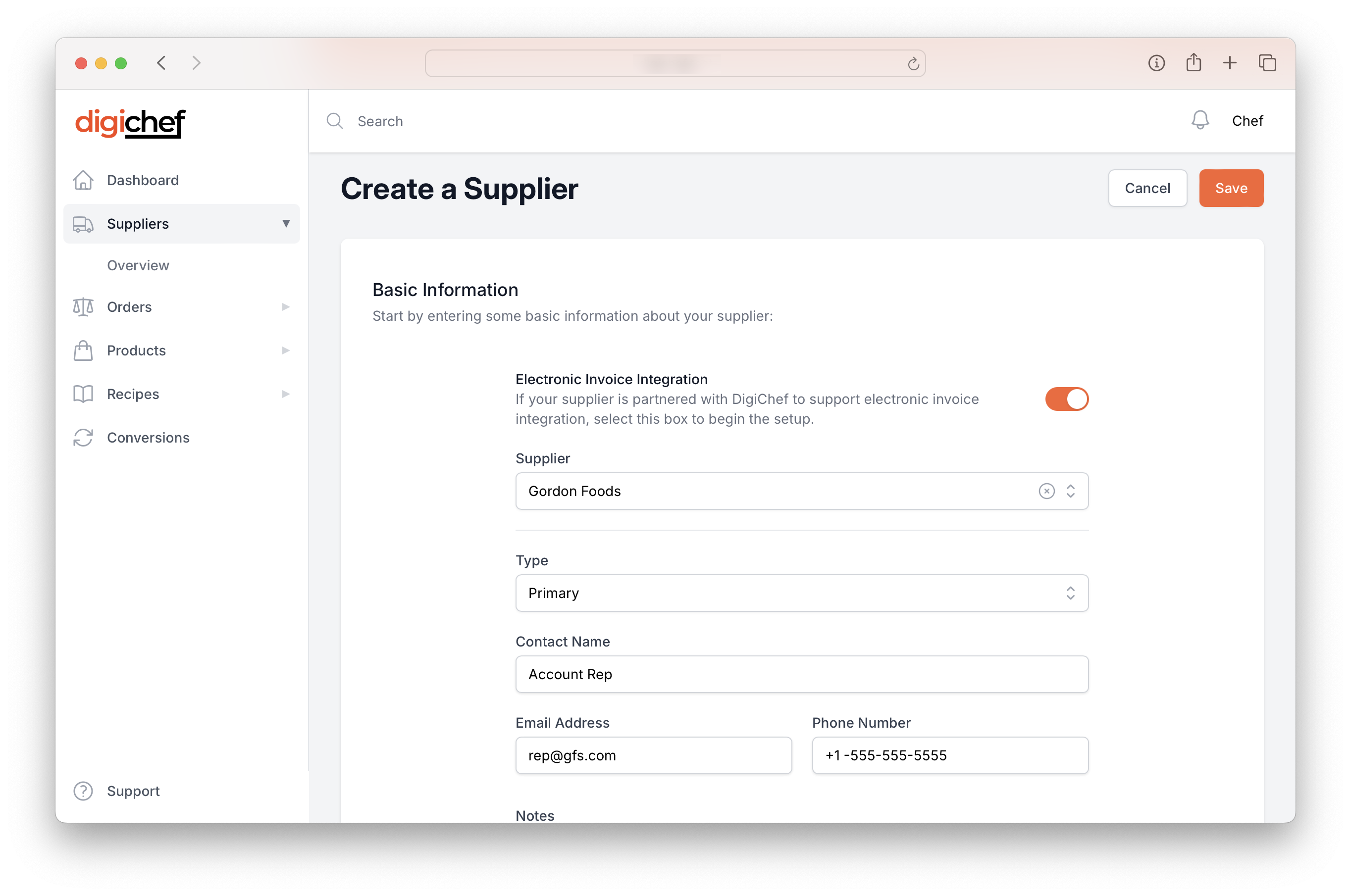
Enter the supplier info
- Navigate to the Suppliers Overview.
- Click Create.
- If your supplier supports Electronic Invoice integration with DigiChef, enable the slider.
- Select the supplier from the dropdown.
Details
Electronic invoice integration allows DigiChef to automatically import new invoices from your supplier into the platform with no manually entry required. Even better, if the price of product changes we'll automatically update the recipe costs of anything using it!
DigiChef currently supports electronic integration with Sysco and Gordon Foods. We're happy to work with other suppliers, so if you'd like to see your supplier added to the list, get in touch!
- If your supplier does not support Electronic Integration, leave the slider disabled and enter the Supplier's name.
- Select the supplier type from the dropdown.
- (Optional) Enter your supplier rep's contact details to keep track of the information, and any notes you want to record for this supplier.
- Click Save.
Account Numbers
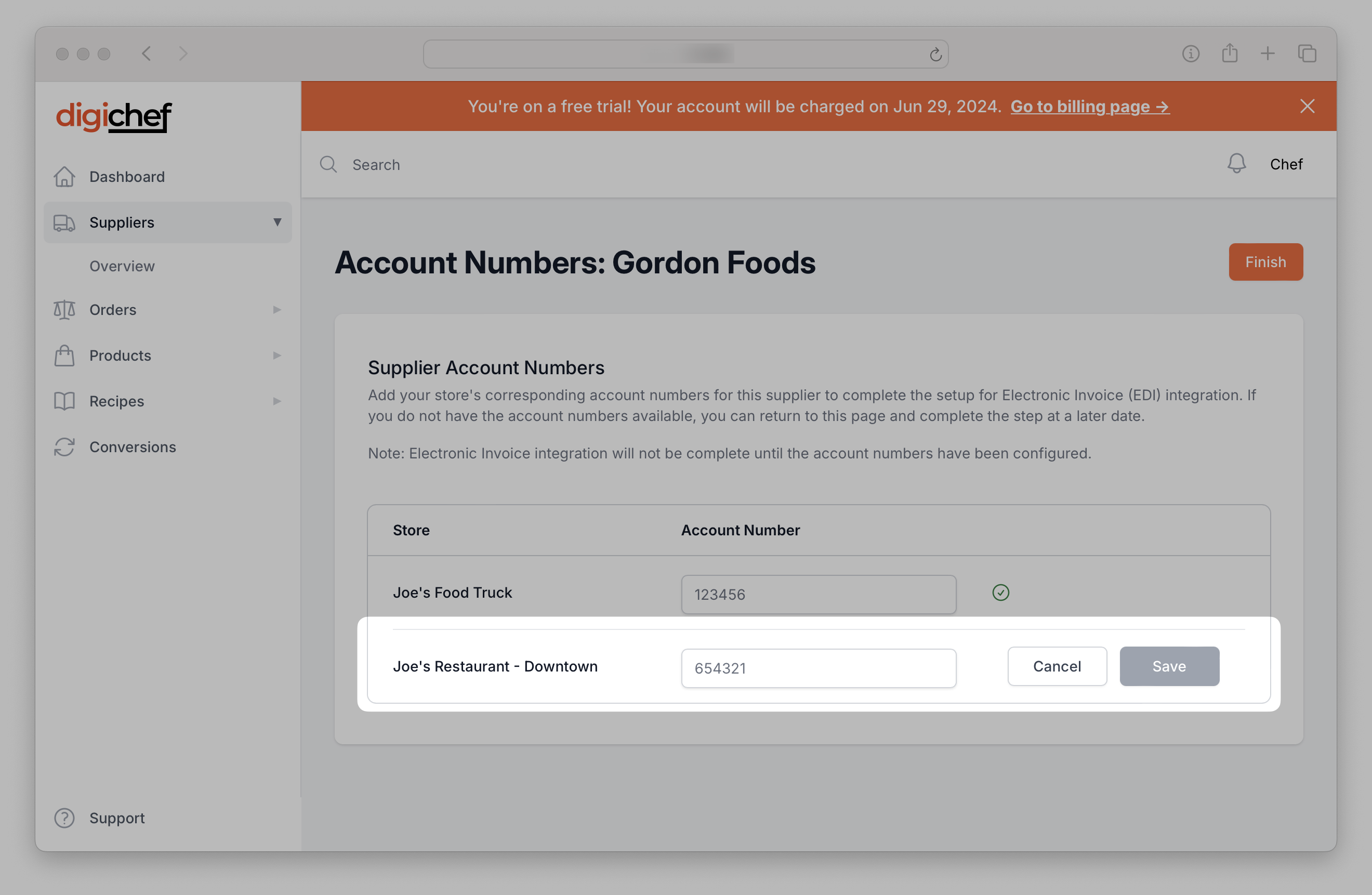
If your supplier supports Electronic Invoice Integration, you can now enter the account numbers for each location. Once account numbers are entered we will begin the integration progress with your supplier, and new invoices will be automatically imported into DigiChef.
- Enter the account number for each location.
- Click Finish.
Next Steps
Now that we've created a supplier, we're ready to import an invoice.